Read SRT files and dub
VieNeu reads .srt subtitle files on the Dubbing (Lồng tiếng) page: each
subtitle line is read at its own timestamp, so the audio lines up with the
video. You can read the lines as written (Vietnamese or English), or have AI
translate them first.
You need: a signed-in VieNeu account and a .srt subtitle file (the page
also takes .vtt and timed .txt files). A video is optional.
The screenshots show the Vietnamese interface. Button names are given in English first, then in Vietnamese in brackets.
The Studio's Upload (Tải tệp) button does not take .srt files. To read
subtitles on their timestamps, use the Dubbing page as described below.
Step 1 — Open Dubbing and drop the file
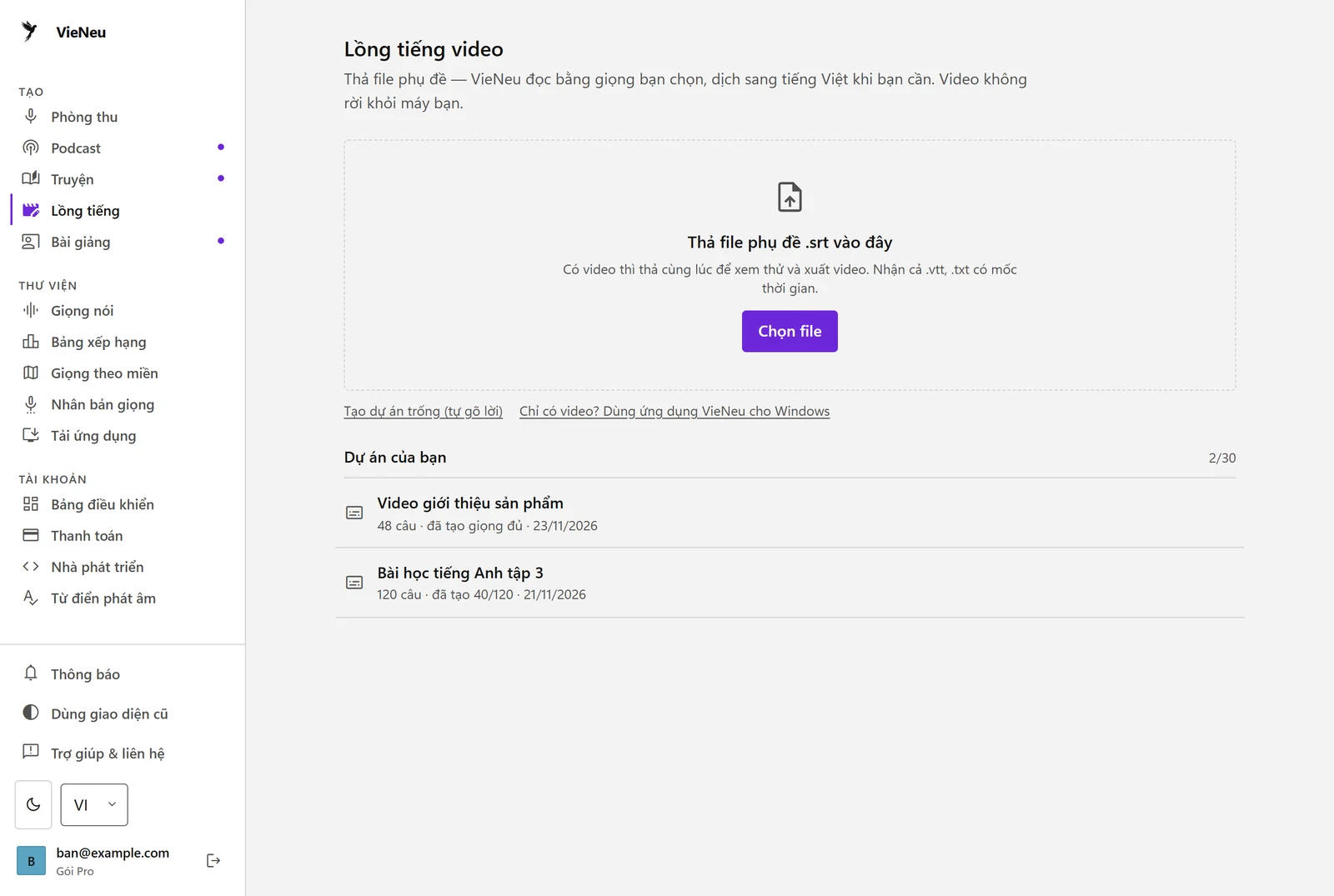
- Sign in at vieneu.io, then click Dubbing (Lồng tiếng) in the Create (Tạo) group of the left sidebar.
- Drag the subtitle file onto Drop a .srt subtitle file here (Thả file phụ đề .srt vào đây), or click Choose files (Chọn file).
- If you have the video, drop it together with the subtitles. The video is only used to preview and to export a video. It is not uploaded to the server.
VieNeu creates a new project, reads the subtitle lines and opens the editor. The project saves itself and is listed under Your projects (Dự án của bạn) on the Dubbing page. Click All projects (Danh sách dự án) to go back to the list.
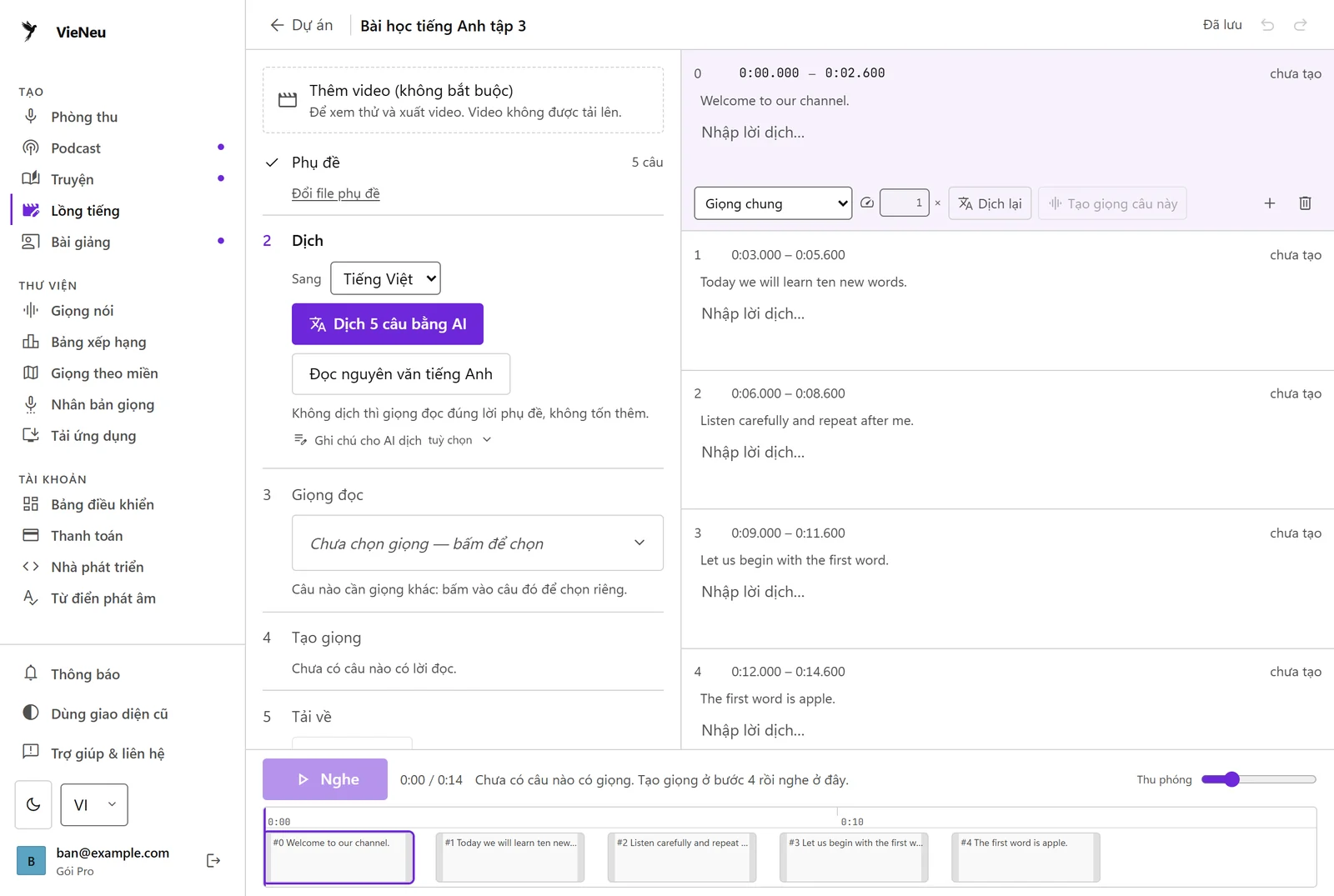
The left column of the editor has five steps: Subtitles (Phụ đề), Translate (Dịch), Voice (Giọng đọc), Generate (Tạo giọng), Download (Tải về). The step that needs you has the main button, and finished steps show a check mark.
Step 2 — Read as written, or translate
Into (Sang) picks the language the voice will read: Vietnamese (Tiếng Việt) or English (Tiếng Anh). Then it depends on your file:
- Vietnamese subtitles: VieNeu uses them as written, with no translation and no extra cost. If the page does not recognise them, click Already in this language? Use as written, no translation (Phụ đề đã đúng ngôn ngữ? Dùng nguyên văn, không dịch).
- English subtitles: the page does not translate on its own. You pick one
of two buttons:
- Read as written, in English (Đọc nguyên văn tiếng Anh): the voice reads the English subtitles word for word, at no extra cost.
- Translate N lines with AI (Dịch N câu bằng AI): AI translates into the Into language, freely enough to fit each line's timing. You can still edit every line afterwards.
- Subtitles in other languages (Chinese, Japanese, Korean…): the voices cannot read these directly, so AI starts translating as soon as the file is in.
Translated an English file you only wanted read as written? Click Drop the translation, read the English as written (Bỏ bản dịch, đọc nguyên văn tiếng Anh) in step 2.
Read an English SRT without translating
- Drop the English
.srtfile on the Dubbing page. - In the Translate step, click Read as written, in English.
- In the Voice step, pick a voice from English · Male (Tiếng Anh · Nam) or English · Female (Tiếng Anh · Nữ). The page reminds you of this right after you click the button in step 2.
- Carry on with steps 4 and 5 as usual.
If you generate while a line has nothing to read yet, the page says This cue has no translation yet. (Câu này chưa có lời dịch.) It does not mean you have to translate: click Read as written, in English in step 2 to use the subtitle text as the line to read.
Step 3 — Pick a voice
Pick one voice for the whole project in the Voice step. The list holds the built-in voices and Your cloned voices (Giọng bạn đã nhân bản).
For a line that needs a different voice, click that line in the line list to set its own. That is also where you edit the text, listen to that line alone, or change the speed for that line only.
When a line is too long for its time slot, the page marks it A little long for its slot (Hơi dài so với khung) or Longer than its slot — will drift from the picture (Dài hơn khung — sẽ lệch hình). Shorten it yourself, or click Shorten with AI (Rút gọn bằng AI).
Step 4 — Generate
- The Generate step shows the estimated tokens for the lines about to be made.
- Click Generate N lines (Tạo giọng N câu), check the tokens in the confirmation, then click Generate (Tạo giọng).
- The page generates the lines one after another and shows progress. Click Stop generating (Dừng tạo) to stop partway.
Lines translated by AI cost a little more than lines read as written or typed by you. The exact number of tokens always shows before you generate. Token prices are on the Billing page.
Editing a line after it was generated means the old voice no longer matches. Generate that line again; each regeneration costs tokens like a new one.
Step 5 — Download
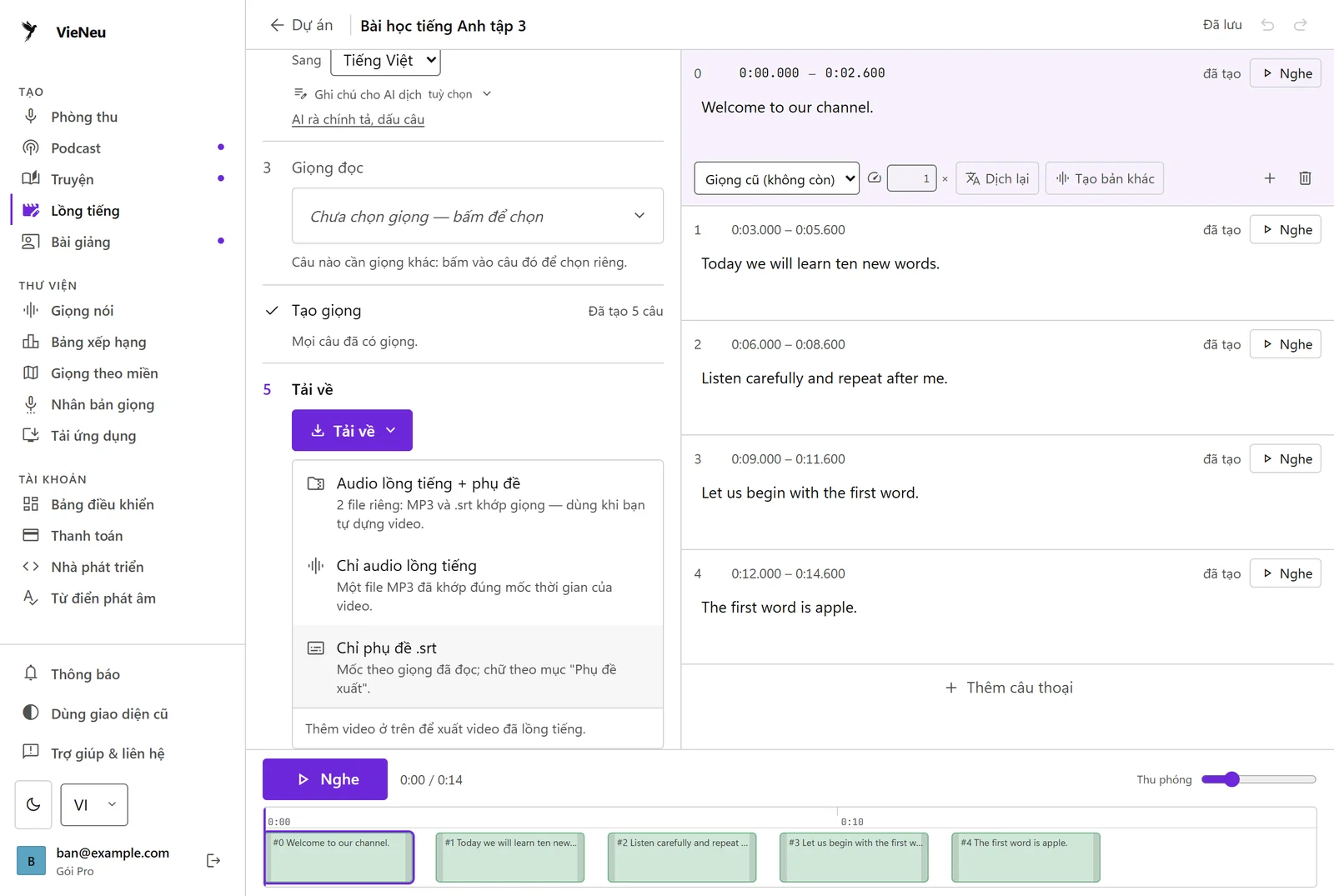
Click Download (Tải về) in step 5 and choose:
- Dubbed audio + subtitles (Audio lồng tiếng + phụ đề): two files, the audio
and a
.srtmatched to the voice. Use this when you edit the video yourself. - Dubbed audio only (Chỉ audio lồng tiếng): one audio file already on the video's timing.
- Subtitles only (.srt) (Chỉ phụ đề .srt): available even before any voice is generated.
- Dubbed video (fast) (Video đã lồng tiếng (nhanh)) and Dubbed video (Video đã lồng tiếng): only when you have added the video to the project. Tick Include subtitles in the video (Kèm phụ đề trong video) to add subtitles.
Open Options (Tuỳ chọn) at the bottom of the left column to change:
- Exported subtitle (Phụ đề xuất): Translation only (Chỉ lời dịch) or Bilingual (Song ngữ).
- Audio format (Định dạng âm thanh): MP3 or WAV.
- Keep the video's original audio (Giữ nhạc/âm nền gốc của video): mix the video's own sound under the dub (needs the video).
The export is built in your browser, so keep the tab open until it is done:
- First the page loads each line's voice (Loading voices x/y, Đang tải giọng x/y), then it builds the file. A project with many lines takes longer.
- Dubbed video is recorded in real time: a video of N minutes takes about N minutes. Keep this tab visible and do not switch to another tab.
- Lines without a voice are silent in the export. The page asks first if there are any.
Limits
- There is no cap on the number of lines in a subtitle file. Only a file too large to store in one project is refused, and the page asks you to split it in two.
- Each account keeps up to 30 dubbing projects. Delete an old one (the bin icon in the list) to make room for a new one.
- On the website, each subtitle file is one project. There is no mode for
dropping several
.srtfiles at once. - A project remembers only the video's file name, not the video. When you reopen it on another computer or after reloading, pick the video file again to preview or export a video.
Through the API: developers send a whole subtitle file in one
POST /v1/srt call (see the API reference).
Troubleshooting
| What you see | What to do |
|---|---|
| You cannot find where to read an SRT file | Use the Dubbing page in the left sidebar, not the Studio. |
| This cue has no translation yet. with an English file | Click Read as written, in English in step 2, then pick an English voice in step 3. |
| Could not read the subtitle file. Check that it is a valid .srt. (Không đọc được file phụ đề…) | Open the file in a text editor and check that each line has a number, a timing line such as 00:00:01,000 --> 00:00:03,000, then the text, with a blank line before the next one. |
| Dropping a video without subtitles asks for a subtitle file | The Dubbing page on the website needs a subtitle file with the video. |
| Download keeps spinning Exporting… (Đang xuất…) | Keep the tab open and visible. A long project needs time to load every line's voice and build the file. If it is truly stuck, reload the page (the project is saved) and export again. |
| The exported video freezes in places | The tab was hidden while recording. Record again and keep the tab visible until it finishes. |
| The browser cannot record the video | Use an up-to-date Chrome or Edge. |
| Still stuck | Click the support icon in the bottom-right corner of the page to message the VieNeu team. |