How the VieNeu Windows app differs from web plans
There are two ways to use VieNeu, bought separately:
- On the web (vieneu.io): reads with V4 voices on VieNeu's servers and spends tokens from the token package you bought.
- The desktop app: reads with V3 voices right on your computer, with no tokens. To unlock every voice and feature in the app, buy a desktop app licence (the VieNeu Pro package).
This page helps you pick what to buy, then find your key and activate the app.
The screenshots show the Vietnamese interface. Button names are given in English first, then in Vietnamese in brackets. The app itself is in Vietnamese only, so its buttons are given in Vietnamese with a translation.
Licence vs token package
| Desktop app licence | Token package on the web | |
|---|---|---|
| Where it works | The VieNeu app on your computer | vieneu.io and the API |
| Voices | V3, running on your machine | V4, running on VieNeu's servers |
| How you pay | A licence for a set term; reading spends no tokens | Tokens are spent on every audio you make |
| Needs a connection to read | No, after the first run | Yes |
| Machines | Each licence is active on one machine at a time | Not tied to a machine |
The two do not replace each other:
- A licence includes no tokens and unlocks nothing on the website.
- A token package on the web (Starter, for example) does not unlock the app. Its tokens can still pay for V4 voices inside the app, see Use V4 voices in the app.
Before you pay, every licence card on the Billing page carries a Before you buy (Lưu ý trước khi mua) note: it reads with V3 voices on your computer with every feature included; V4 voices also work in the app but are billed in tokens.
Free app vs licensed app
The app is a free download. Sign in with Google and you get the free tier straight away, with no time limit and a set of default V3 voices.
A licence adds:
- the full VieNeu V3 voice library in the app;
- cloning a voice on your machine, under Voice Cloning (see Clone a voice in the app);
- the Sách nói (audiobooks) and Thống kê (statistics) sections;
- video export without the small VieNeu logo in the corner;
- Server VieNeu-TTS: lets other programs on the same computer call the app to read (see Does the app have an API).
Anything that needs a licence shows a padlock in the app's left sidebar.
Which voices the app has
The website's voices are V4 voices. The app reads on your computer with V3 voices. The two lists differ, so a voice you like on the web is not necessarily in the app.
To hear the V3 voices before you buy, without signing in:
- Open Voices by region, or click Listen to V3 voices (Nghe thử giọng V3) on the Download page.
- Pick the V3 voices (app) (Giọng V3 (ứng dụng)) tab.
- Search by name or trait, filter by region, then play each voice's sample.
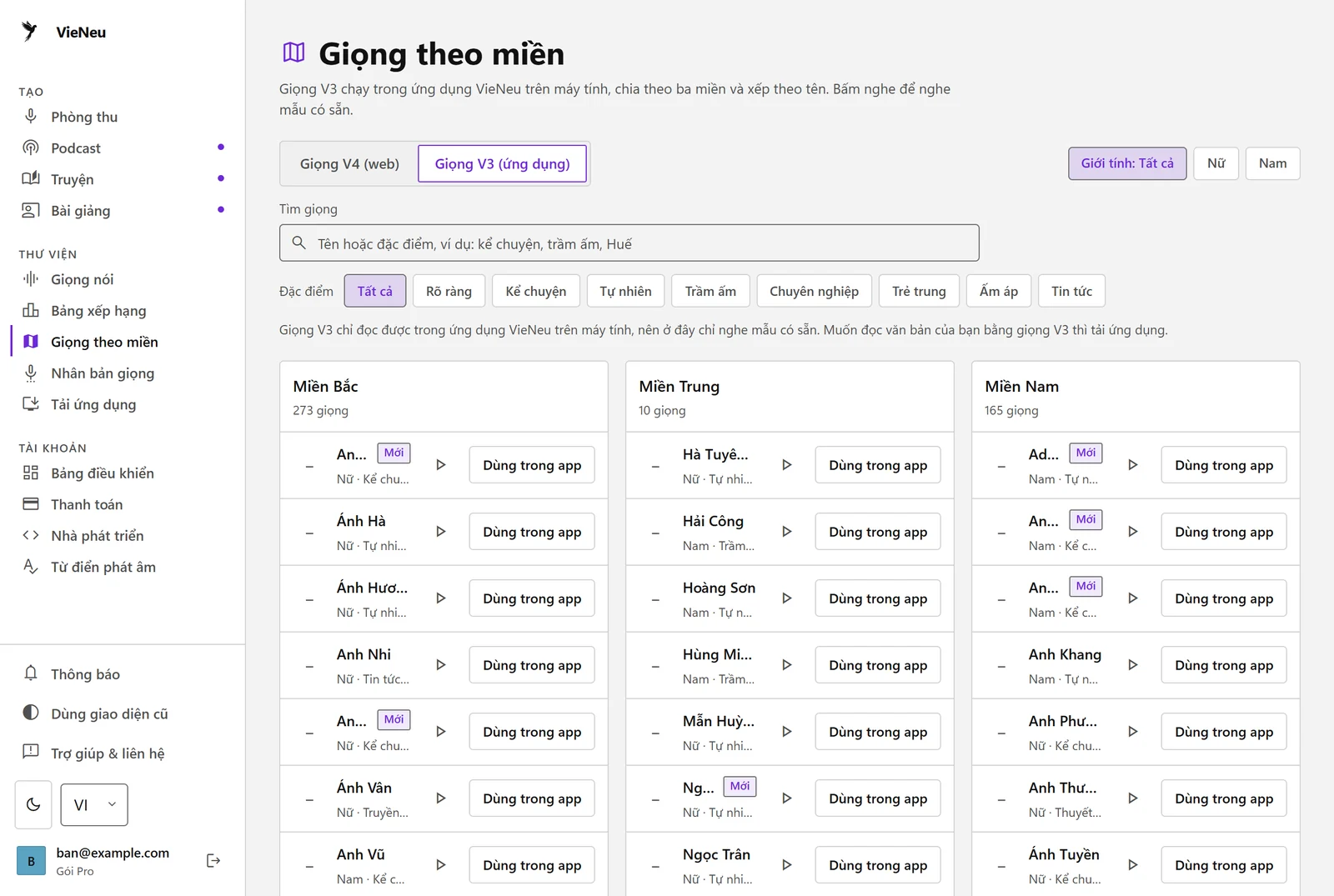
You can also install the app and sign in to try the free tier's default voices before buying.
To read with the website's V4 voices inside the app, see Use V4 voices in the app.
How long a licence lasts
Licences are currently sold by the year for one computer, and you renew yearly to keep using them. Each package's term is printed under its price in Buy a desktop app licence (Mua bản quyền ứng dụng máy tính) on the Billing page. The expiry date of a licence you hold is shown under My Licenses (Bản quyền của tôi).
- When a licence expires, the app goes back to the free tier: it still opens and reads with the default voices, but the licensed sections lock again.
- Renewing keeps your existing licence key. A renewal package, when there is one, only appears on the Billing page if the account holds a licence that can be renewed.
- A lifetime licence bought earlier keeps working and needs no renewal.
Buy a licence
- Sign in at vieneu.io and click Billing (Thanh toán) in the left sidebar.
- Scroll down to Buy a desktop app licence (Mua bản quyền ứng dụng máy tính).
- Read the Before you buy note on the package card, then click Get Payment QR (Lấy QR thanh toán).
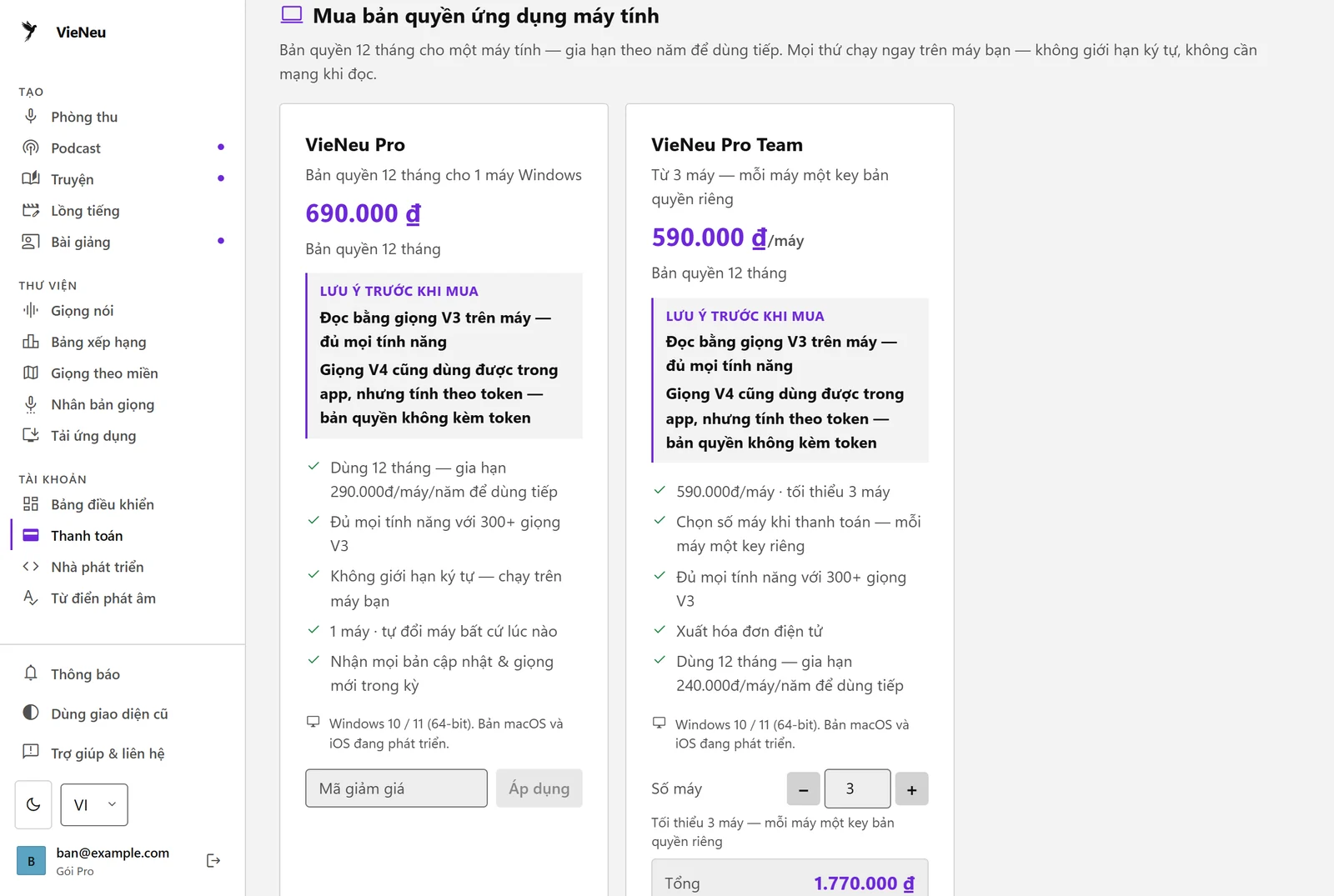
Paid but no licence yet? See Payment.
Download and install the app
- Click Download app (Tải ứng dụng) in the website's left sidebar, or open vieneu.io/#/download.
- Click Download for Windows (Tải cho Windows).
- Open the downloaded file. If Windows shows a blue "Windows protected your PC" screen, click More info (Thông tin thêm), then Run anyway (Vẫn chạy). The warning appears because the installer is not code-signed yet; it says nothing about whether the file is safe.
- The first time it opens, the app downloads its voice model. This happens once.
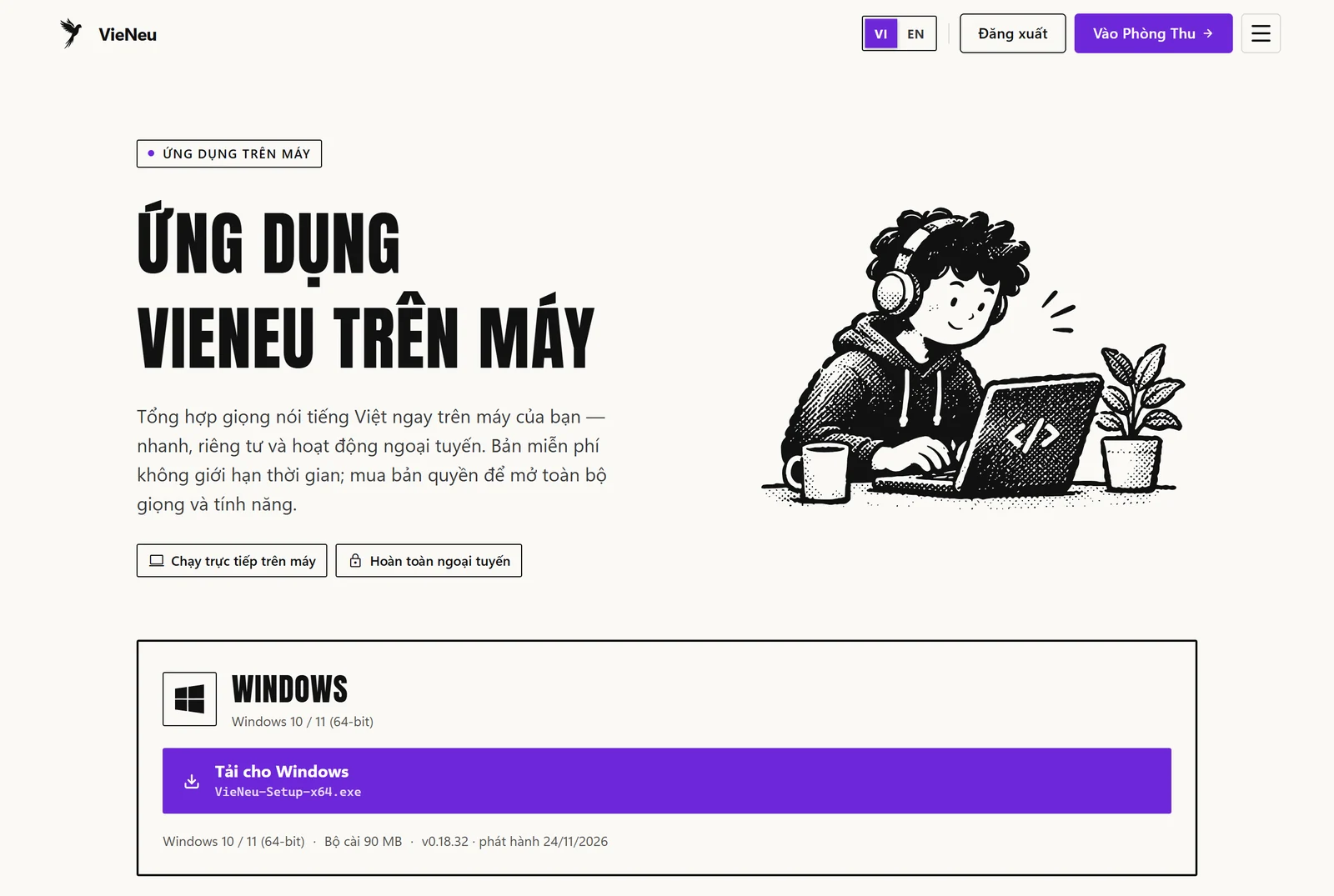
Find your licence key
Most of the time you do not need the key: sign in to the app with the same Google account you bought with, and the app picks up the licence by itself (see activation).
When you do need the full key (for a machine with no browser, say):
- Sign in on the web and open the Device Management page.
- Under My Licenses (Bản quyền của tôi), the key is partly hidden, for
example
7P6X-****-****-P7UV. - Click the eye icon (Show license key) to see the whole key, or click Copy (Sao chép) to copy the full key.
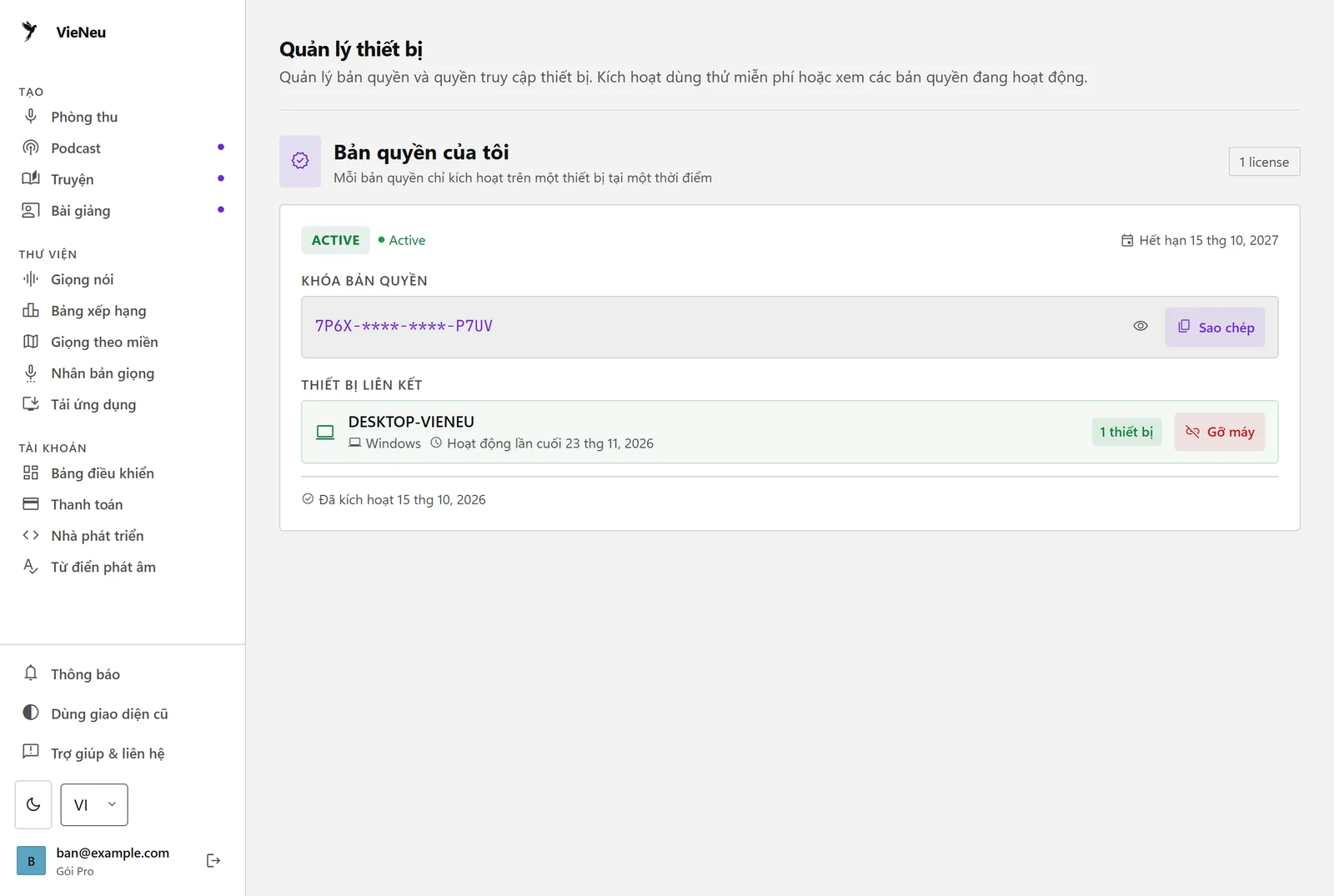
The My Licenses section at the bottom of the Billing page only shows the hidden key. To see or copy the full key, use the Device Management page above.
There is no separate installer for buyers: use the same installer from the Download page, then activate.
Activate the app
The usual way: sign in with Google
- Open the app and click Đăng nhập bằng Google (Sign in with Google).
- Finish signing in in your browser with the account you bought with, then come back to the app.
- The app finds your licence and activates it on this machine.
If you were already on the free tier and bought afterwards: click Nâng cấp (Upgrade) at the bottom of the app's left sidebar, then Tôi đã mua — kiểm tra lại (I've bought it, check again) or Kích hoạt trên máy này (Activate on this machine).
The manual way: enter the key
Use this when the machine has no browser, or the licence was bought under a different email:
- On the app's sign-in screen, click Đã có mã bản quyền? Nhập thủ công (Have a licence key? Enter it manually).
- Enter the Email of the account that bought it and the full Mã bản quyền (licence key).
- Click Kích hoạt bằng mã (Activate with key).
Move to another machine
Each licence runs on one machine at a time. If it is active on another machine, the app asks and shows Chuyển sang máy này (Move to this machine). Clicking it signs the app out on the old machine. You can also click Release (Gỡ máy) on the Device Management page, then activate on the new machine. The number of moves within 30 days is limited.
Use V4 voices in the app
Reading with V3 on your computer is the app's default. V4 voices also work in the app, but they run on VieNeu's servers, so they spend tokens just like on the web. A licence includes no tokens.
- You need an active token package on the web. Buy one on the Billing page, under API Token Packages (Gói token API).
- On the web, click Developer (Nhà phát triển) in the left sidebar. In the Create New Key (Tạo khóa mới) box, give it a name, click Generate Key (Tạo khóa), and copy the new key.
- In the app, open Cài đặt (Settings), find Khoá API cho giọng V4 (API key for V4 voices), paste the key and click Lưu khoá (Save key).
With a key in place, the app's V4 switch unlocks, and the V4 voices you cloned on the web show up in the app too. For how tokens are counted, see Tokens and plans.
Clone a voice in the app
The app has two kinds of cloned voice:
- On your machine (V3), needs an app licence: open Voice Cloning in the app, upload or record a WAV or MP3 sample under 10 MB, then trim it to 4–7 seconds of clear speech. The sample is processed and stored on your machine and never sent to a server. Reading with this voice spends no tokens.
- V4 (server): voices you cloned on the website, counted against your web token package (see Voice cloning). A licence adds no cloning allowance on the web. V4 clones show up in the app once you have an API key, and spend tokens when they read.
Computer requirements
The System requirements table on the Download page always has the current figures. In short:
- Operating system: Windows 10 or 11, 64-bit.
- CPU: x64 with 4 cores or more, 8 recommended. No graphics card needed. More cores read faster; an older 4-core machine still works, only slower.
- RAM: 4 GB, 8 GB recommended.
- NVIDIA card (optional): add the GPU accelerator in the app to read faster. It needs extra disk space.
- Connection: needed to install, to fetch the model the first time and to sign in. After that, reading needs no connection.
The licence currently lists Windows 10/11 64-bit. If the Download page shows a macOS card, a Mac needs an Apple M1 chip or later and macOS 14 or later; Macs with an Intel chip cannot run it.
Does the app have an API
- VieNeu's cloud API (called over the internet) uses an API key made on the Developer page, and needs an active token package. A licence does not give you an API key. See the API guide.
- Server VieNeu-TTS in the app (needs a licence): switch it on and other programs on the same computer (scripts, n8n, AI assistants) can call the app to read with V3 voices, using the OpenAI API format. The server's address only answers calls from that same machine.
Troubleshooting
| What you see | What to do |
|---|---|
| You bought a licence but the app still says free tier | Check the app is signed in with the Google account you bought with. Click Nâng cấp (Upgrade), then Tôi đã mua — kiểm tra lại (I've bought it, check again). If the order is not confirmed yet, see Payment. |
You only see a key like 7P6X-****-****-P7UV | Open Device Management and click the eye icon or Copy under My Licenses. |
| The app says the licence is in use on another machine | Click Chuyển sang máy này (Move to this machine), or Release on the Device Management page. |
| The V4 switch in the app is locked | Add an API key under Cài đặt (Settings) → Khoá API cho giọng V4. The key needs an active token package. |
| A voice you like on the web is not in the app | Web voices are V4. Browse the V3 list on the V3 voices (app) tab, or use V4 in the app with an API key. |
| Windows blocks the installer | Click More info, then Run anyway. |
| Still stuck | Click the support icon in the bottom-right corner of the page to message the VieNeu team. |