Download your audio
Every time you click Generate Speech (Tạo giọng nói), VieNeu saves the recording to your account. Download it right away in the Studio, or find it again any time on My Voices (Giọng nói của tôi). Downloading never costs tokens, however many times you do it.
The screenshots show the Vietnamese interface. Button names are given in English first, then in Vietnamese in brackets.
Download right after generating
- In the Studio, click Generate Speech. A new row appears in the Recordings (Bản ghi) list. When it is done, the row says Speech ready! (Đã tạo xong!).
- Click the Download (Tải xuống) button, the down-arrow icon at the end of the row. On a computer, hover over the row if you do not see the button.
- Your browser saves the file to your Downloads folder like any other file.
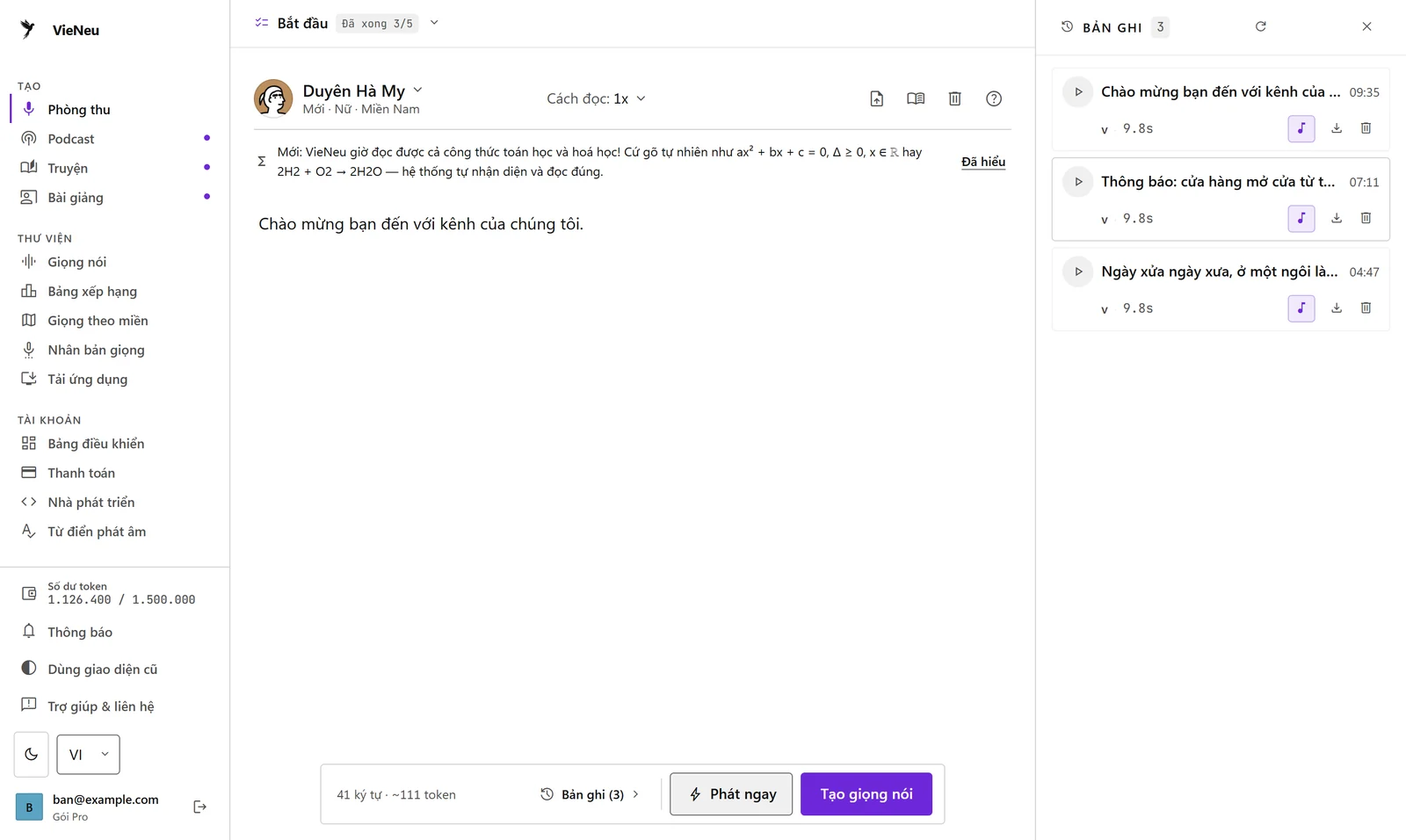
Where the Recordings list sits:
- Wide screens: a column to the right of the editor. Click Recordings (N) (Bản ghi (N)) in the bottom bar to show or hide it.
- Narrow screens and phones: under the editor. Click Recordings (N) to scroll down to it.
- Classic design (if you clicked Use the classic design, Dùng giao diện cũ): the list is called Recent Generations (Các bản ghi gần đây) and sits under the editor.
This list only shows the 10 newest recordings. If the one you just made is missing, click Refresh (Làm mới), the circular-arrow icon at the top of the list. Older recordings are on My Voices (see below).
A recording with background music has two versions. Pick With music (Có nhạc nền) or Voice only (Giọng thuần) on the row, then click Download: you get the version that is selected.
Find and download older recordings
Click Voices (Giọng nói) in the Library (Thư viện) group of the left sidebar. The My Voices page has two tabs:
- Generated audio (Bản audio đã tạo): every recording you have made, newest first. This is where you download older files.
- Cloned voices (Giọng nhân bản): the voices you have cloned. This tab is for managing voices (play the sample, rename, delete), not for downloading audio.
In Generated audio:
- Each page shows part of the list. Use the arrow buttons next to Page 1 / N (Trang 1 / N) at the bottom to see later pages.
- Type in Search by text or voice... (Tìm kiếm theo văn bản hoặc giọng...) to find a recording by a few words of its text or by voice name.
- Filter by voice with All voices (Tất cả giọng), and by time with Any time (Mọi lúc): today, the last 7 days, the last 30 days, or a date range.
- Click Download at the end of a row to download that recording.
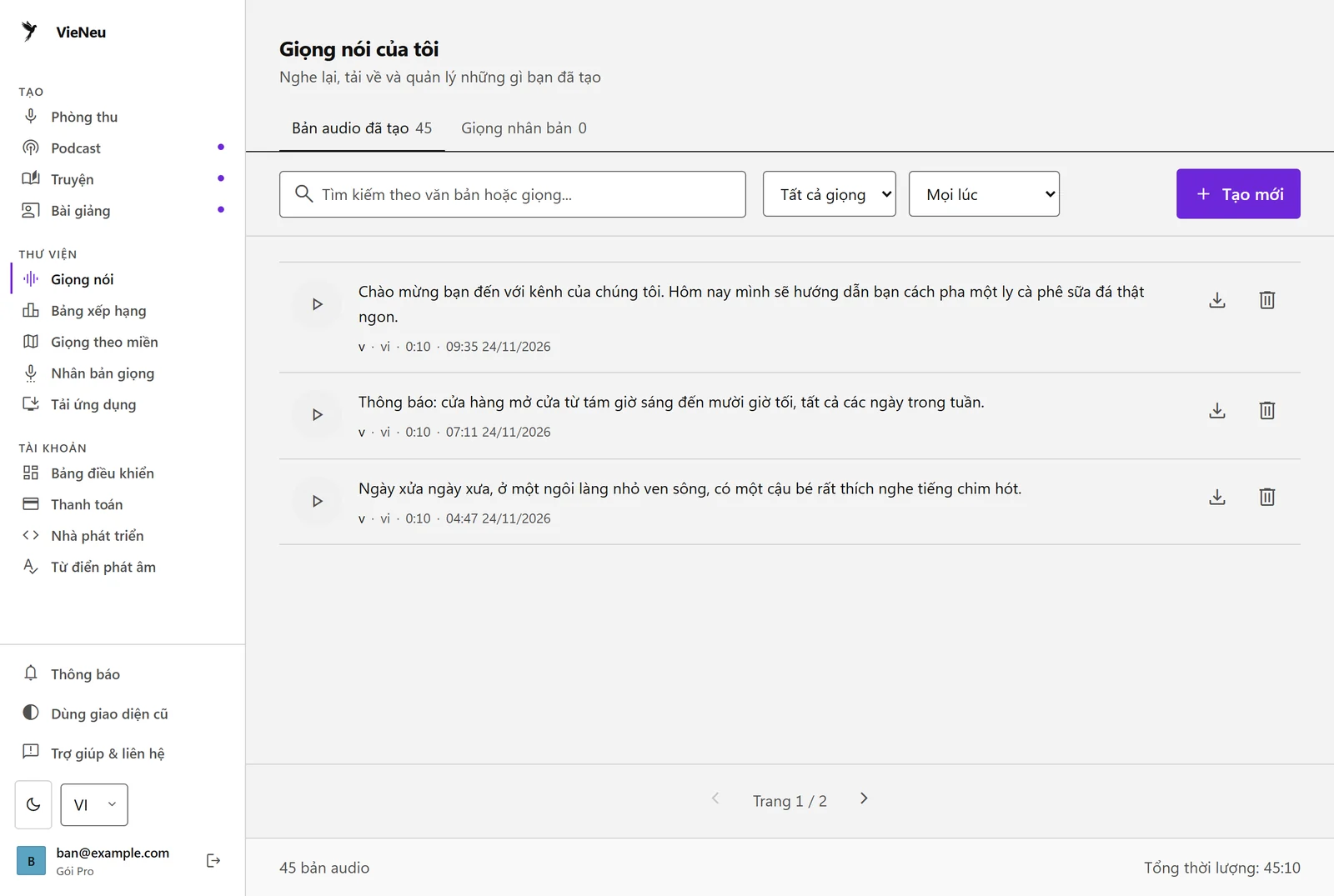
Audio read with your cloned voice is in this list too and downloads like any other recording.
Podcasts and stories
- Podcast: the Podcast page has its own list, Podcasts created (Podcast đã tạo), with a Download button on each row.
- Story: on the Story page (Truyện), generate every part, then click Export story (Xuất truyện). When the export is done, a Download (Tải về) button appears and saves the whole story as one file. The exported story also shows up under Generated audio.
The Story page has no button to download each part on its own. If you need one file per chapter, generate each chapter in the Studio: every generation is a recording you can download separately.
Dubs and subtitles
A dub made from a subtitle file is downloaded in the Download (Tải về) step
of the Dubbing page, not from the Recordings list.
You choose audio only, the .srt subtitles only, both, or the dubbed video. See
Read SRT files and dub.
Troubleshooting
| What you see | What to do |
|---|---|
| The recording you just made is not in the list | Click Refresh at the top of Recordings. The list keeps only the 10 newest; older ones are on My Voices. |
| The download button keeps spinning Downloading… (Đang tải…) | Right after generating, or for a long file, VieNeu fetches the file through its server and shows the progress. Let the page work and do not reload it halfway. Clicking again does not make it faster. |
| Could not download the file (Không tải được file) | Check your connection and click again. If you use a download manager such as IDM, turn it off for vieneu.io. |
Nothing is saved, or downloads work only sometimes (for example net::ERR_FAILED) | The file comes from VieNeu's storage through a separate link. Download managers, ad blockers, antivirus software or a company network can block that link. Turn those extensions off, or try another browser or another network. |
| An old download link no longer works | Download links only last a short time. To download again, click Download again instead of saving the link. |
| Clicking download sends you to the sign-in page | Your session has expired. Sign in again, then click Download. |
| The browser asks whether to allow multiple downloads | Allow it. When you download audio plus subtitles on the Dubbing page, the page saves two files in a row. |
| Still stuck | Click the support icon in the bottom-right corner of the page to message the VieNeu team. |